

KB User's Guide - Settings Tab - Customizing Live Site Messages
Important
These procedures require full administrative permissions within your space. You must have access to the Documents, Settings, and Users tabs before proceeding.
Which messages can I customize?
You can customize the following three messages on your live site:
- The seach success message, which is the message displayed below a set of search results in the KB
- The search failure message, which is the message displayed when no search results are found
- The page not found error, which is the message displayed when a user tries to navigate to a document page that is unavailable
Each of these messages has default text associated with them, but you can change these to make them unique to your site and processes. For example, you can customize a message to include:
- a more natural description with language that is friendly and inviting
- special search tips or directions on submitting feedback
- a link leading to helpful information
How to customize a message
To customize one of the above messages:
-
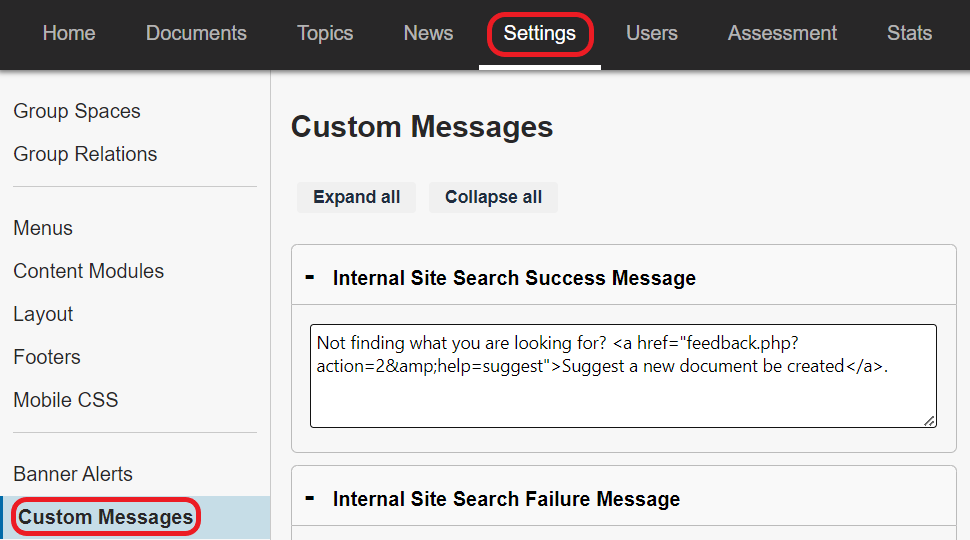
Navigate to the Settings Tab > Custom Messages link
-
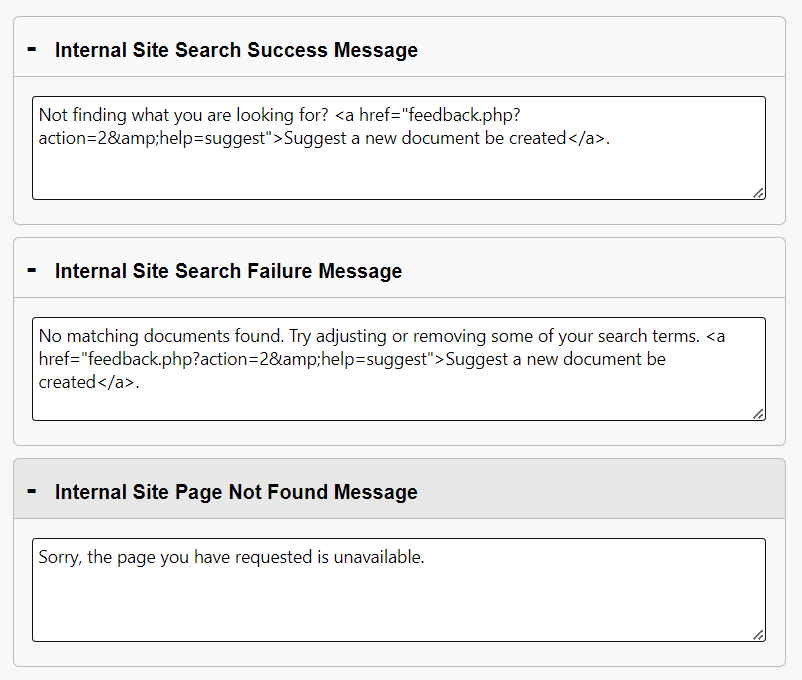
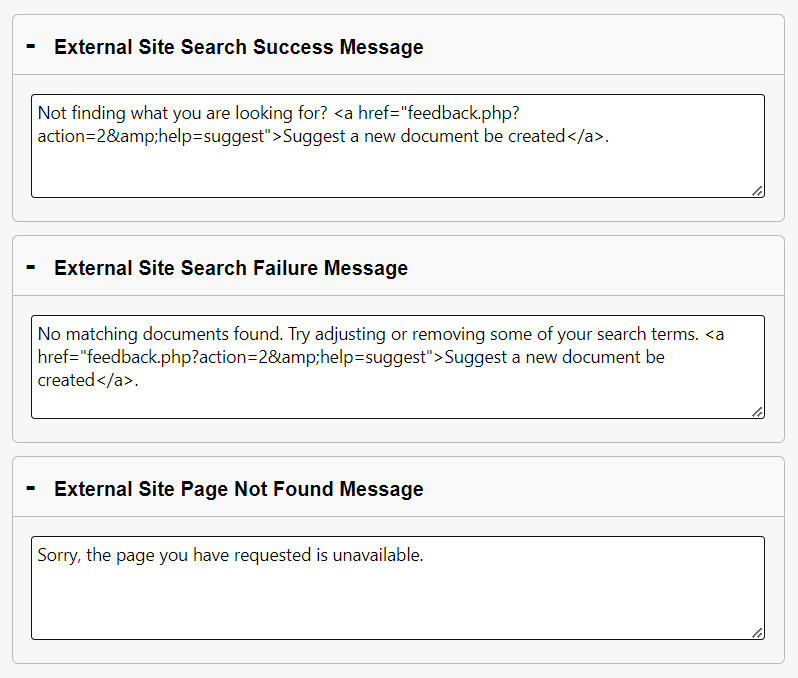
You’ll be taken to the Custom Messages page, where six expandable panels let you create or modify message sets for both the Internal and External KB sites.
- Internal Site Search Success Message
- Internal Site Search Failure Message
- Internal Site Page Not Found Message
- External Site Search Success Message
- External Site Search Failure Message
- External Site Page Not Found Message
-
Enter plain text in these fields, or use HTML formatting to provide links, images, tables, etc. in these text fields.
-
Note: If you would like to add this type of content but are unsure of how to format it in HTML, you can open a new document and use the Body editor to format the content as desired. When you are satisfied with your content, use the Source code button < > in the editor toolbar to view and copy the HTML that was generated for you.
-