

ACES Technology services, Turner Hall W223
Room Information
- For more information/training on this classroom, please contact us at:
- E-mail: aces-it-help@illinois.edu
- Phone: (217) 244-6407
- To Reserve the room: Click here and enter the required information
- This room accommodates up to 36 attendees. For information on all classroom capacities: Click here
Equipment in this room:
- Resident Desktop Computer with Monitor
- 1 Large TV screen
- 6 Small TV screens
- Projector
- HDMI

-
- Wireless Presentation Device
- Speaker/Microphone/Webcam
- USB Port on Equipment desk
- Touch Panel (source options include USB-C, HDMI, PC, Wireless)
- Logitech pointer presented on Resident Desktop- Assists with slide navigation and laser pointer

Room W223 is a technology enhanced classroom, this has Lecture mode and Collaboration mode. Collaboration mode enhances the experience in the room to allow for breakout sessions within the room if you plan on doing group or project work where each of the 5 tables would need a dedicated screen. If you need more information/training on collaboration mode, please contact us.
Connections and Adapters Available
- HDMI

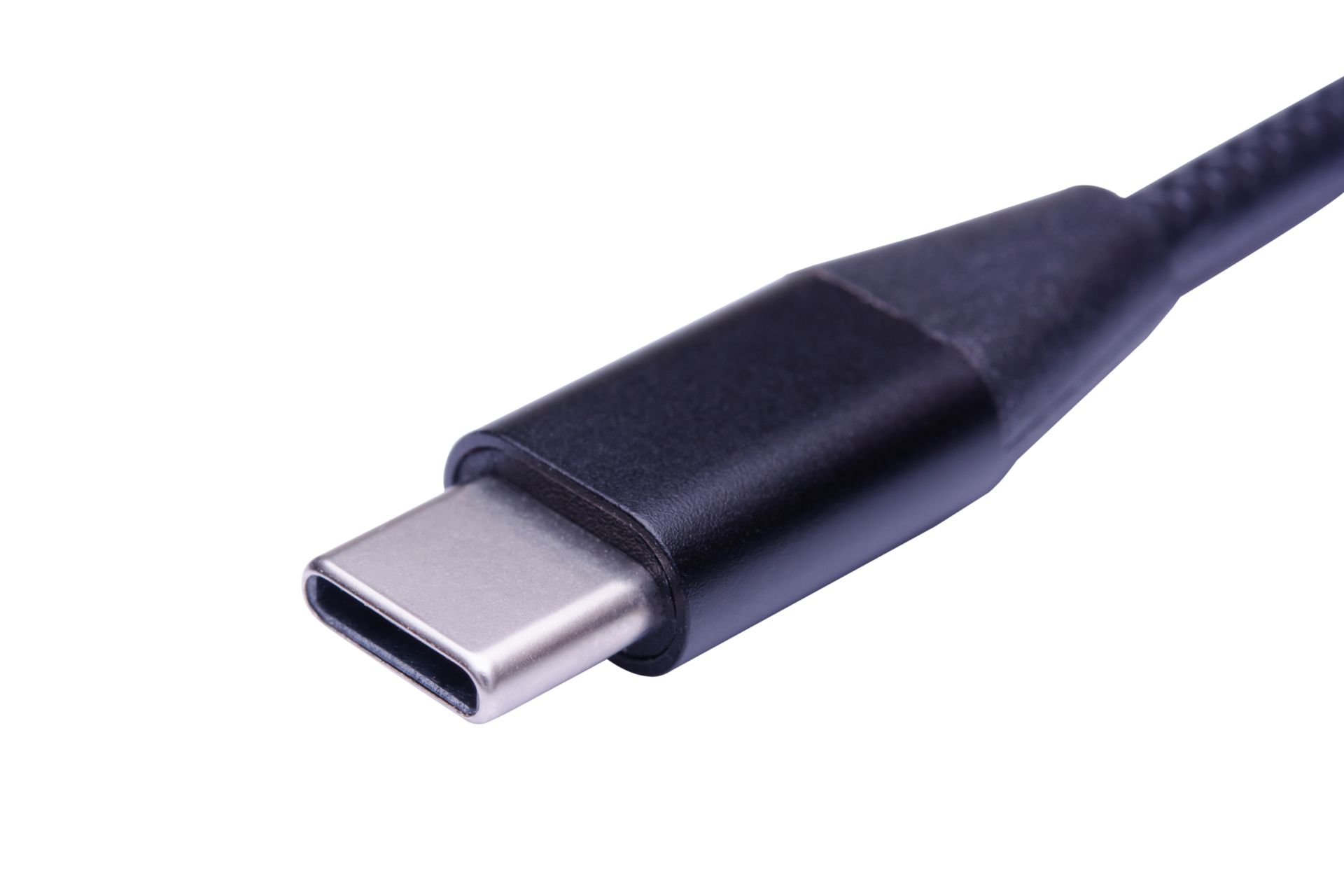
- USB-C
- Dell 4-in-1 Adapter (includes: HDMI, USB-A, Ethernet, VGA)
Meeting options
- Zoom presented on Resident Desktop Computer using Webcam on the Monitor.
- Teams presented on Resident Desktop Computer using Webcam on the Monitor.
Useful links
How to use the Touch Panel:
Touch Panel Guide
1. Touch the panel to begin

2. Select the source for the device to be paired to the room.

3. There are two presentation modes. Lecture and Collaboration.
- Lecture mode
- This is the default mode when you turn on the system
- The selected source will be displayed on all of the displays in the room

- Collaboration mode
- This mode allows you to change the input source of each display individually
- To do this, touch an input from this list at the bottom, then touch a display. The display input will change to whatever is selected at the bottom.

- Screen mute button, for the presenter to stop the audience from seeing the screen while preparing the image.

4. There are 4 options to Present:
-
- Select PC, if presenting through the resident computer, enter your UIUC login credentials
- Select Wireless, if presenting through WIFI device.
- Select HDMI if connecting your device (laptop) through these ports
- Select USB-C, if connection your device (laptop) through this port
. 

Pressing the eye symbol will mute the screen for the presenter to stop the audience from viewing the screen temporarily.
To present via the side monitors
- Select Pod 1-5, if using small TV screen to present to the classroom
5. The top controls of the Touch Panel:


6. If Presenting through Wireless Device:

-
- Go to the Web browser, enter the URL shown on the screen (In this case, 192.17.121.181)

-
- Enter the 4-digit code displayed on the screen on to your device
- The screen on your device will display two options:
- Install Solstice pod
- Already have my app installed.
- The solstice app should already be installed on your system if not please install the app
- The app will list all the classrooms
- Click on the desired classroom to present
- The Device will Start Presenting
7. When done please click, System off and Power Down if there are no other classes

Room Pictures
View from the Lectern View from back of the room


Picture of the Lectern Picture of Wall socket for collaboration mode

