
Cornerstone Performance - Goals - Manager
Use this job aid to learn how to:
- Access Universal Profile
- Access Employee’s Goals
- Review and Edit an Employee’s Goal
If you have any questions, please contact ihr-hrais@illinois.edu.
How to Access Cornerstone:
Open an internet browser and go to Cornerstone
- Log in to Cornerstone using your net ID and password.
Access Universal Profile:
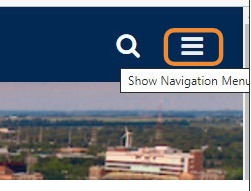
Click "Show Navigation Menu"
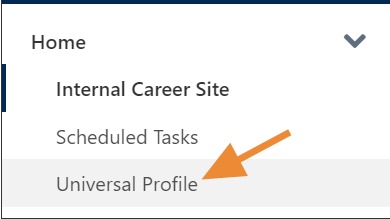
Select Home, Universal Profile:
Access Employees' Goals:
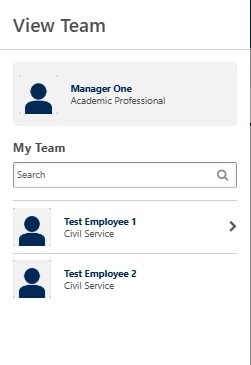
To access your team’s goals, select the View Team button.

You can search for an employee or select the name from the list.
Once you select one of your employees, you will now see their Bio page.
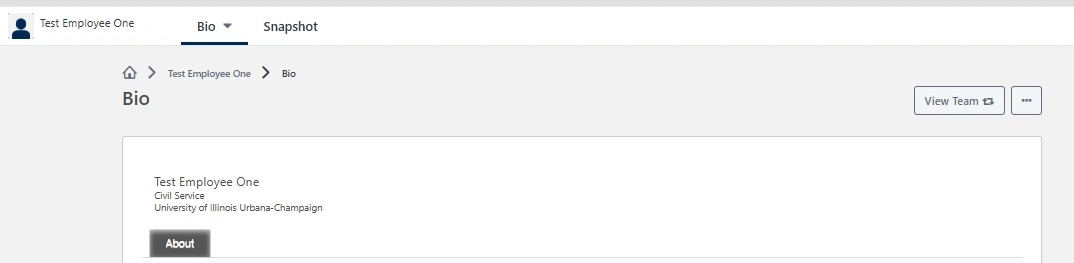
Select Snapshot along the top menu.
- Click anywhere in the Goals Box.
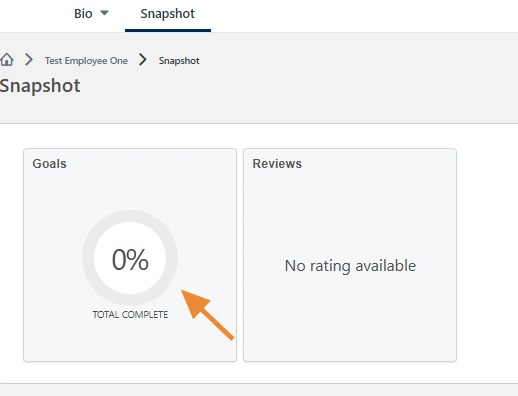
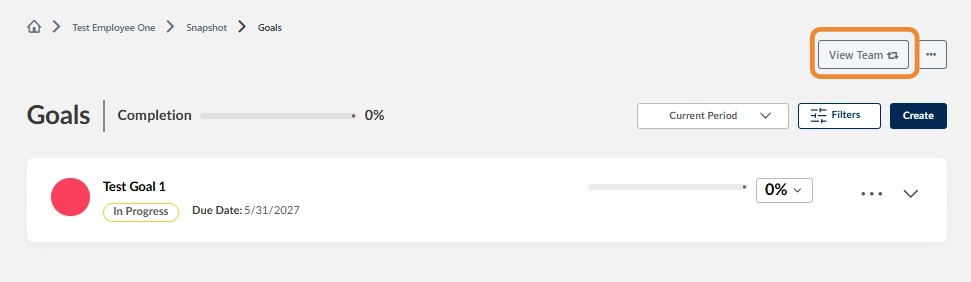
The employee’s goals for the current period will be displayed.
- You can see previous goal periods by changing the date criteria.
- Click on the percentage and then move the slider bar to adjust the goal progress.
- Select the three dots (ellipsis) in the top right-hand corner to download a PDF.
- Select the right arrow to see more information regarding a goal.
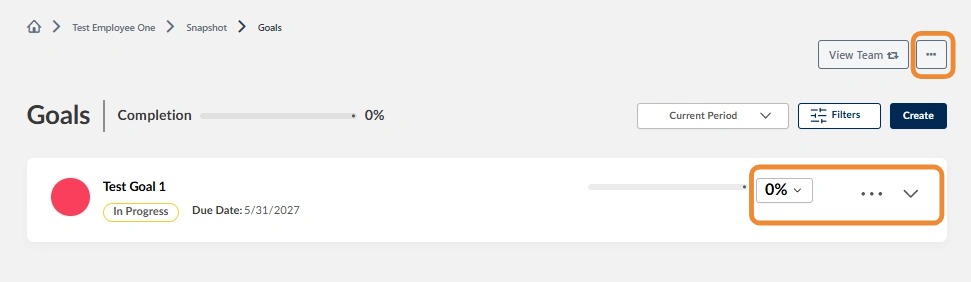
Review and Edit an Employee's Goal:
When you expand the goal you can see the description of the goals, any comments entered, and any attachments.
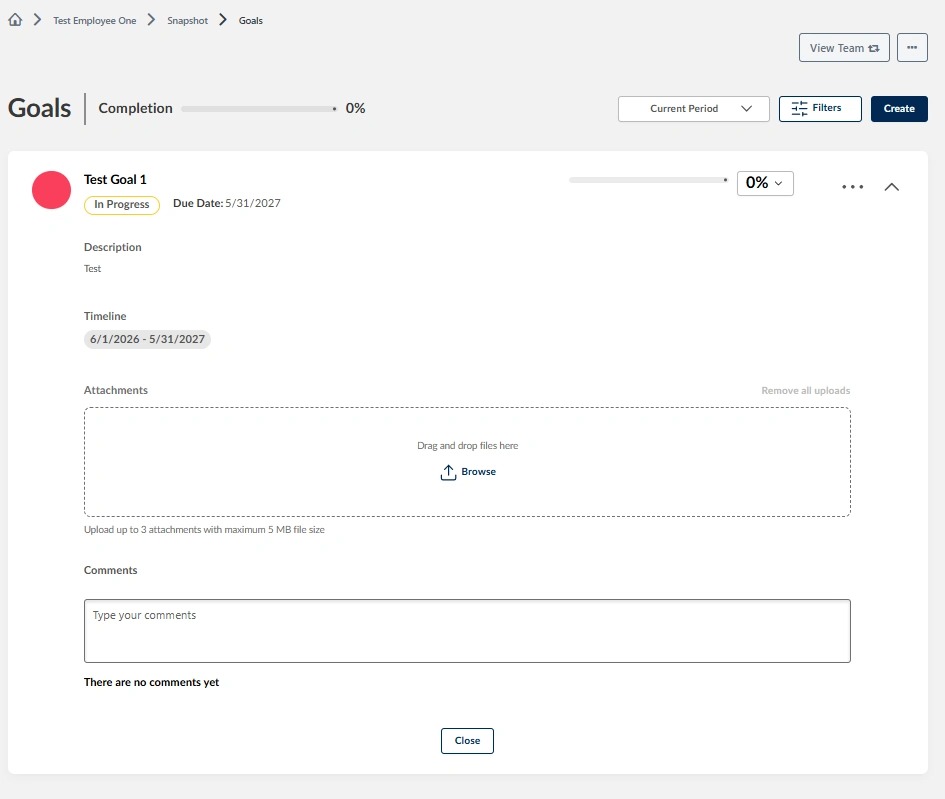
To edit the goal, select the down arrow to the right of the goal title and select Edit. You can also choose to cancel the goal or view the history of the goal.
- You can change the title, description, dates, attachments, or comments of the goal.
- Press Submit Modifications when finished.
- You can also view the history of the goal by selecting the Options drop-down.
- PLEASE NOTE: The employee will be notified when a supervisor makes any edits to their goals.
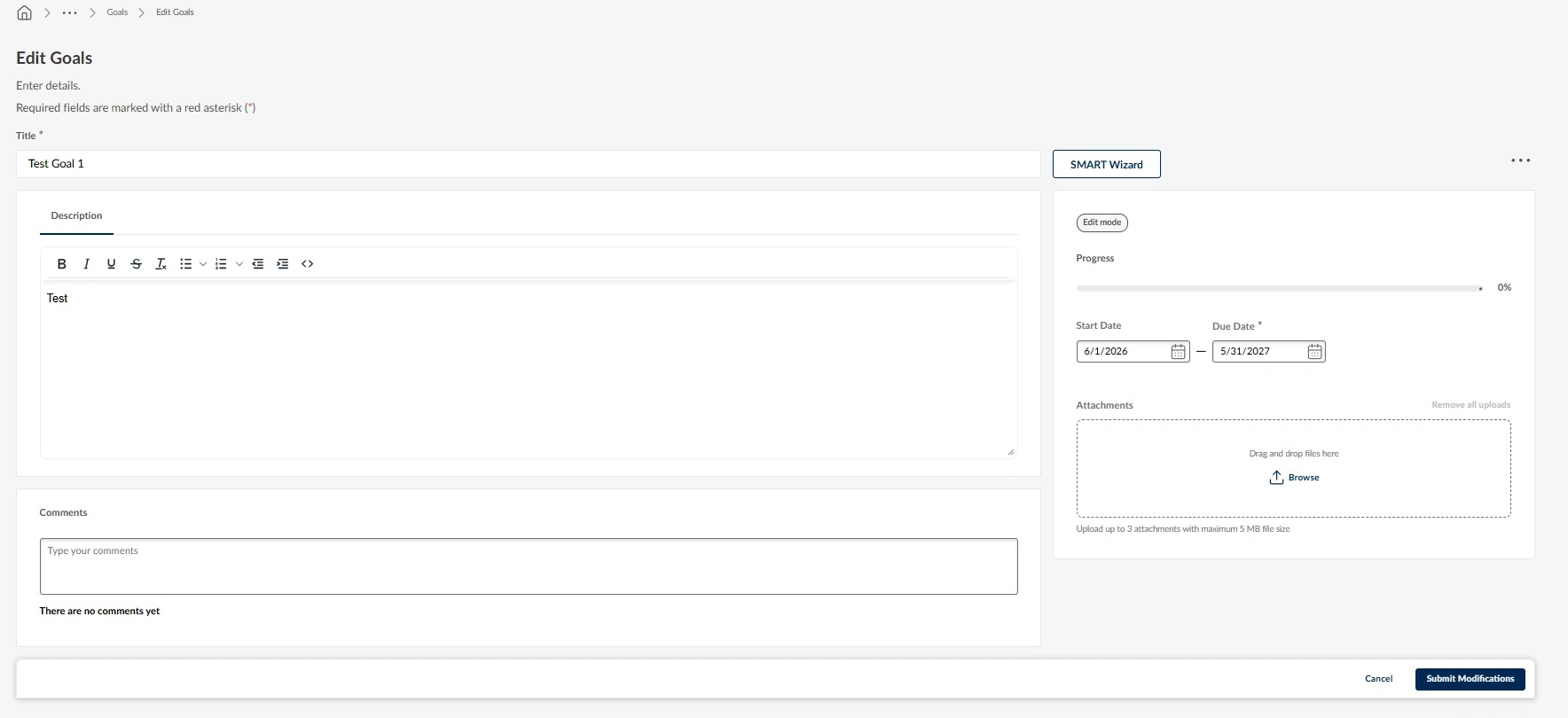
Submitting will take you back to the goals page where you can view/edit another goal for the employee, or you can select View Team to select another employee to review.
For more information, contact ihr-hrais@illinois.edu