Cornerstone Performance - Annual Review - Manager
Open internet browser and go to Cornerstone. Log in to Cornerstone using your net ID and password.
Use this job aid to learn how to:
- Access the Scheduled Tasks List
- Select Competencies
- Complete the Manager Review
- Access the Completed Annual Review
If you have any questions, please contact ihr-hrais@illinois.edu.
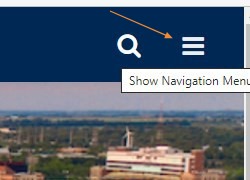
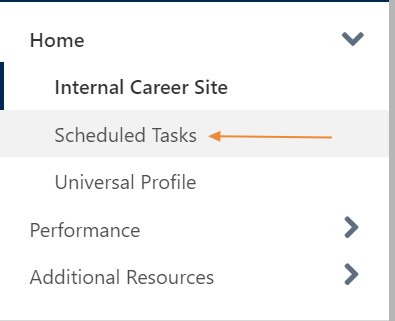
From any page in Cornerstone, access the main menu in the upper right corner of the page and choose Home, Scheduled Tasks.
- Select the menu.
Select Home, Scheduled Tasks.
On the Scheduled Tasks page, choose the Annual Review task that you have been assigned. You may enter search criteria to locate a particular task if desired.

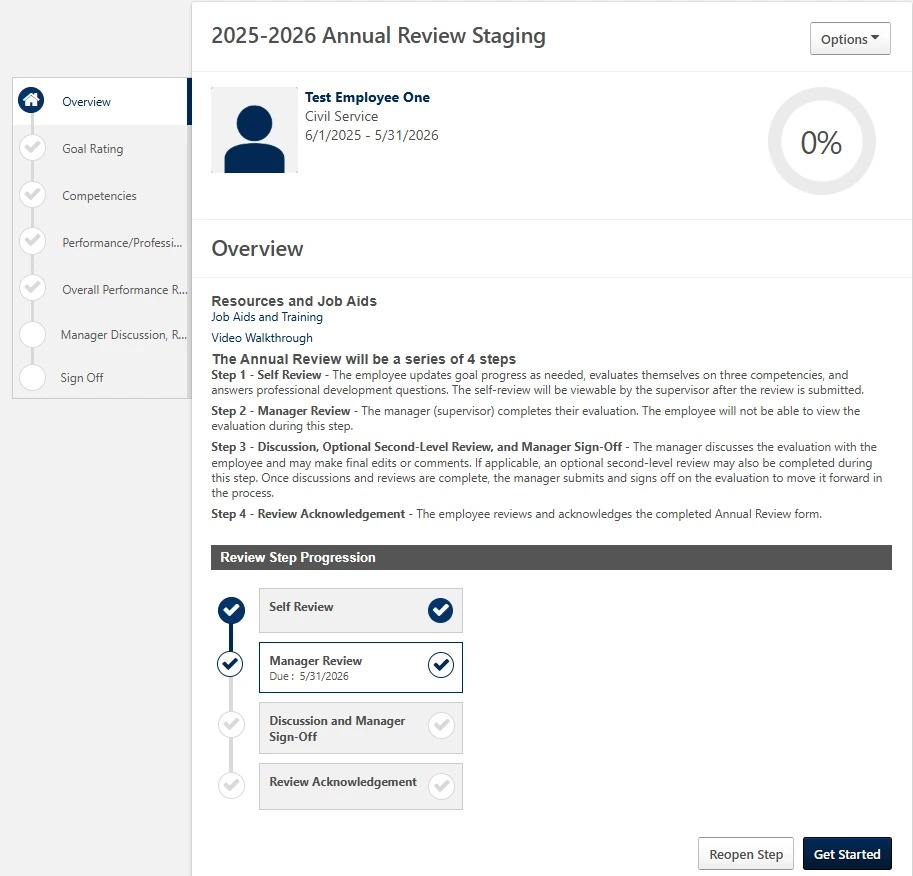
Once you access the form, there is an explanation of the 4 steps that the Annual Review will go through. Select "Get Started" to begin the Manager Review.
NOTE: There is a Reopen Step button beside the Get Started button. If the employee needs the review to be sent back to them for editing, you can choose Reopen Step to send it back. You will then need to wait until they submit it again to begin the Manager Review process.
The first page will be any goals that were entered for this reporting period.
- If no goals were entered during the report period, this page will be blank.
- You can add comments if desired to the goals and you can also adjust the goals progress by choosing the down arrow in the upper right corner of the goal and select Manage Goals.
- If there were any attachments or comments added to the goal, you can view them by selecting Goals: Attachments or Goals: Comments.
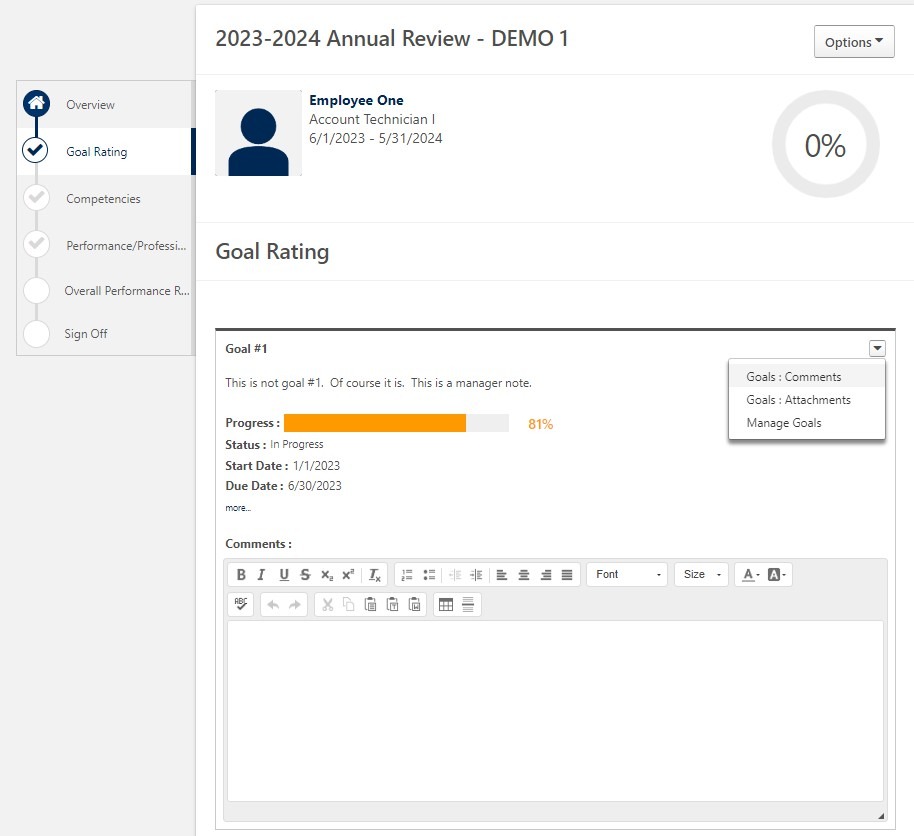
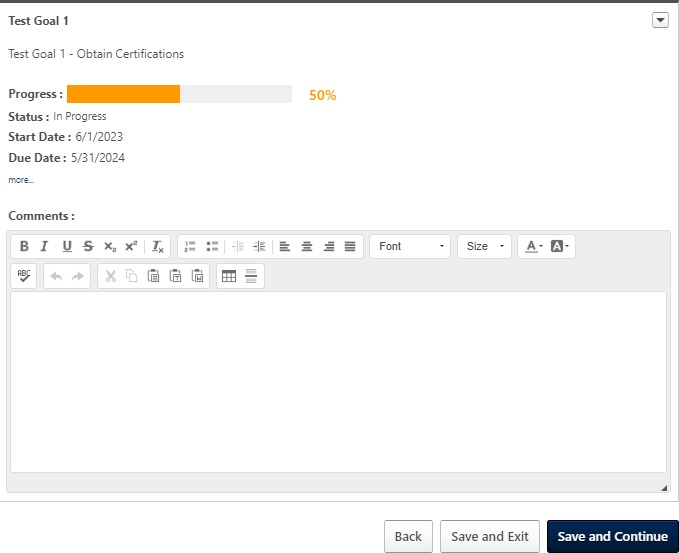
Once you have made any updates or added comments to the goals, press the Save and Continue button to proceed to the next page.
- You may choose to select Save and Exit to save your changes and return to the review at a later time.
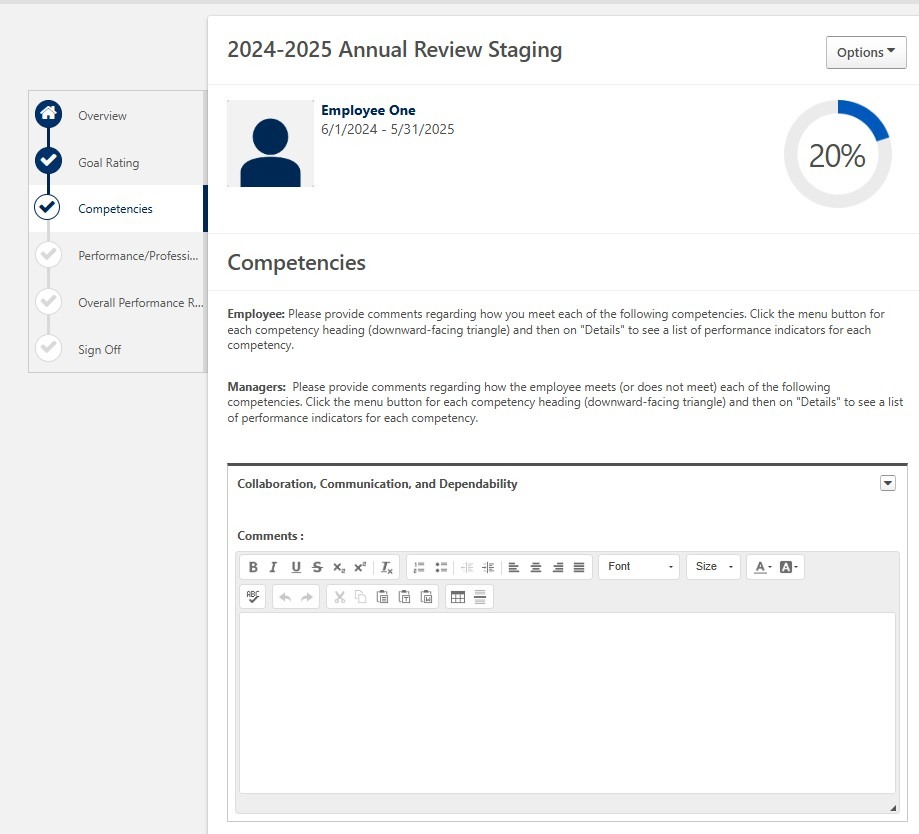
Please provide comments regarding how the employee meets (or does not meet) each of the following competencies.
- Click the menu button for each competency heading (downward-facing triangle) and then on "Details" to see a list of performance indicators for each competency.
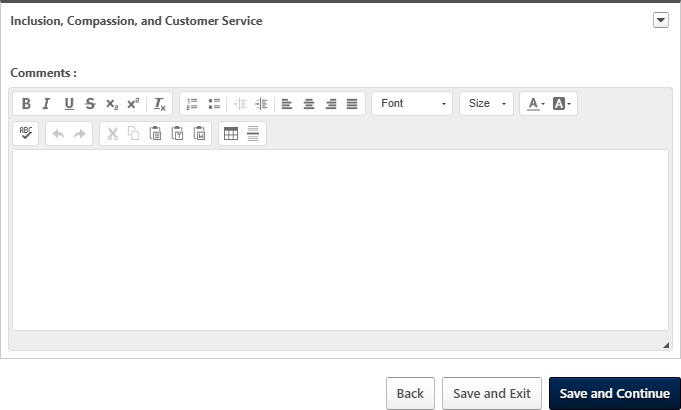
Once all Competencies have been evaluated and comments entered, select the Save and Continue button to proceed to the next page.
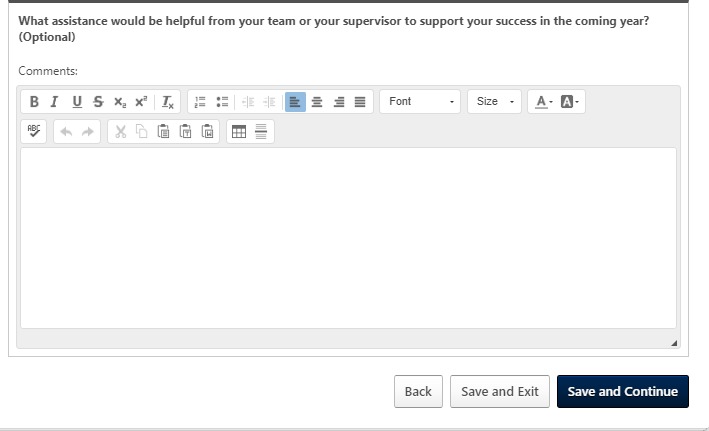
The next page will ask you to review your employees' answers to the Performance and Professional Development questions.
- You can add any comments you wish on this page as well.
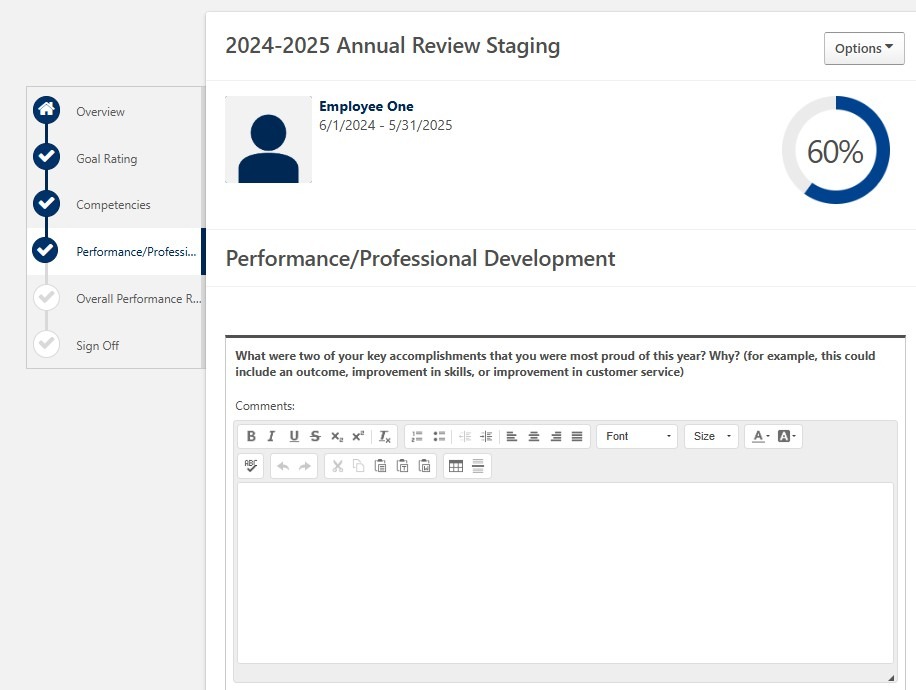
Press "Save and Continue" when you are finished reviewing this section.
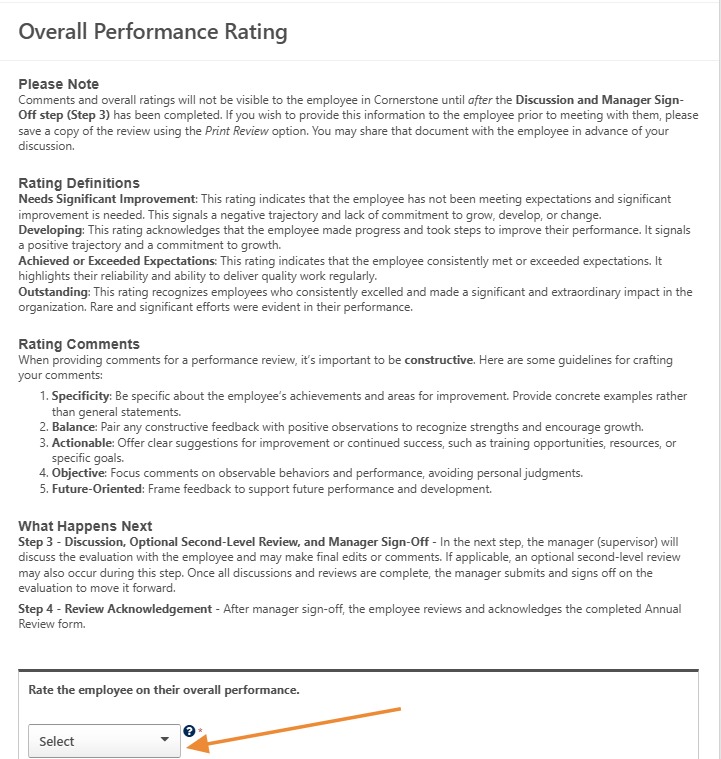
The next page allows you to choose an overall performance rating.
- Once selected, choose Save and Continue to proceed to the Summary page.
If you wish to print the review at this time, you can choose Print Review under the Options drop-down.
- “Print Preview” – will provide a PDF for printing that DOES include the overall rating.
- “Print Reviewee Version” – will provide a PDF for printing that DOES NOT include the overall rating.
- NOTE: Submitting the review does make the full review visible to the employee in the platform. It is very important that you do not click submit if you wish to discuss the contents of the review with the employee beforehand.
- Once you have discussed it with the employee, you can come back to this screen and continue with the submission. Managers will still be able to make additional comments after their conversation with the employee and before finalizing the review.
- You will need to type your name in the “Manager” box and click “Sign”.
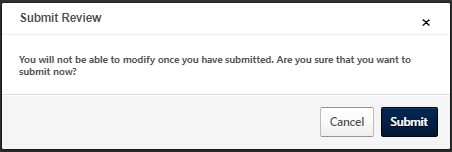
- Then, you will need to click “Submit” and you will get a pop-up indicating you cannot modify once you have submitted. If there is a need to modify after you submit, please send email to ihr-hrais@illinois.edu
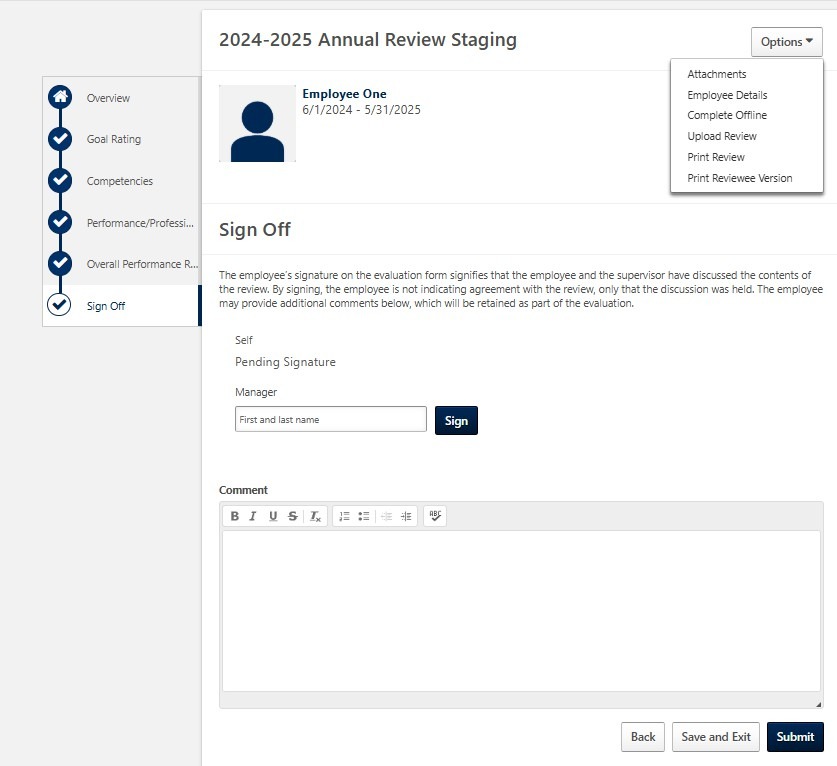
You will not be able to make changes after hitting the submit button.
- If you need a step re-opened, please email ihr-hrais@illinois.edu.
- Press Submit to send the review to the employee.
The employee will now receive an email that the Annual Review is ready for the Acknowledgement step.
- Once the employee has acknowledged their form, you and the employee will receive an email that the task is complete.
Access the Completed Annual Review:
To review the performance review at a later date, you can go to the Performance Reviews page.
- From any page in Cornerstone, access the main menu in the upper right corner of the page and select menu.
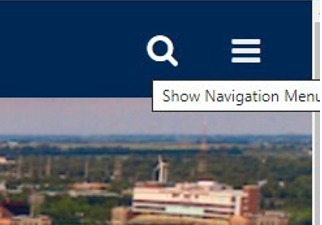
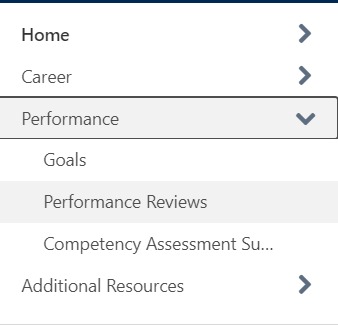
Select Performance, Performance Reviews.
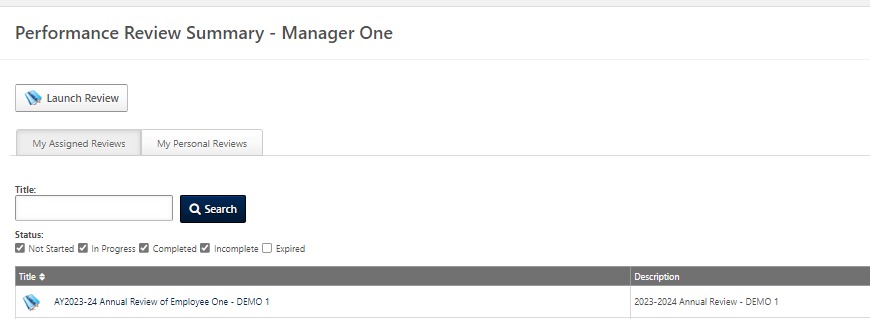
On the Performance Review Summary page, on the My Assigned Reviews tab, select the Completed status to view completed performance reviews. Click on the Review you would like to view. This will download a PDF document which you can then save or print.