

Printing, Zebra GX420t Label Printer Solution Guide
Troubleshooting instructions for common Zebra GX420t label printer issues, including calibration, adjusting print darkness, and correcting label sizing.
Zebra GX420t Label Printer Troubleshooting
Solutions for common printing issues with the Zebra GX420t label printer, including calibration, print darkness, and label sizing.
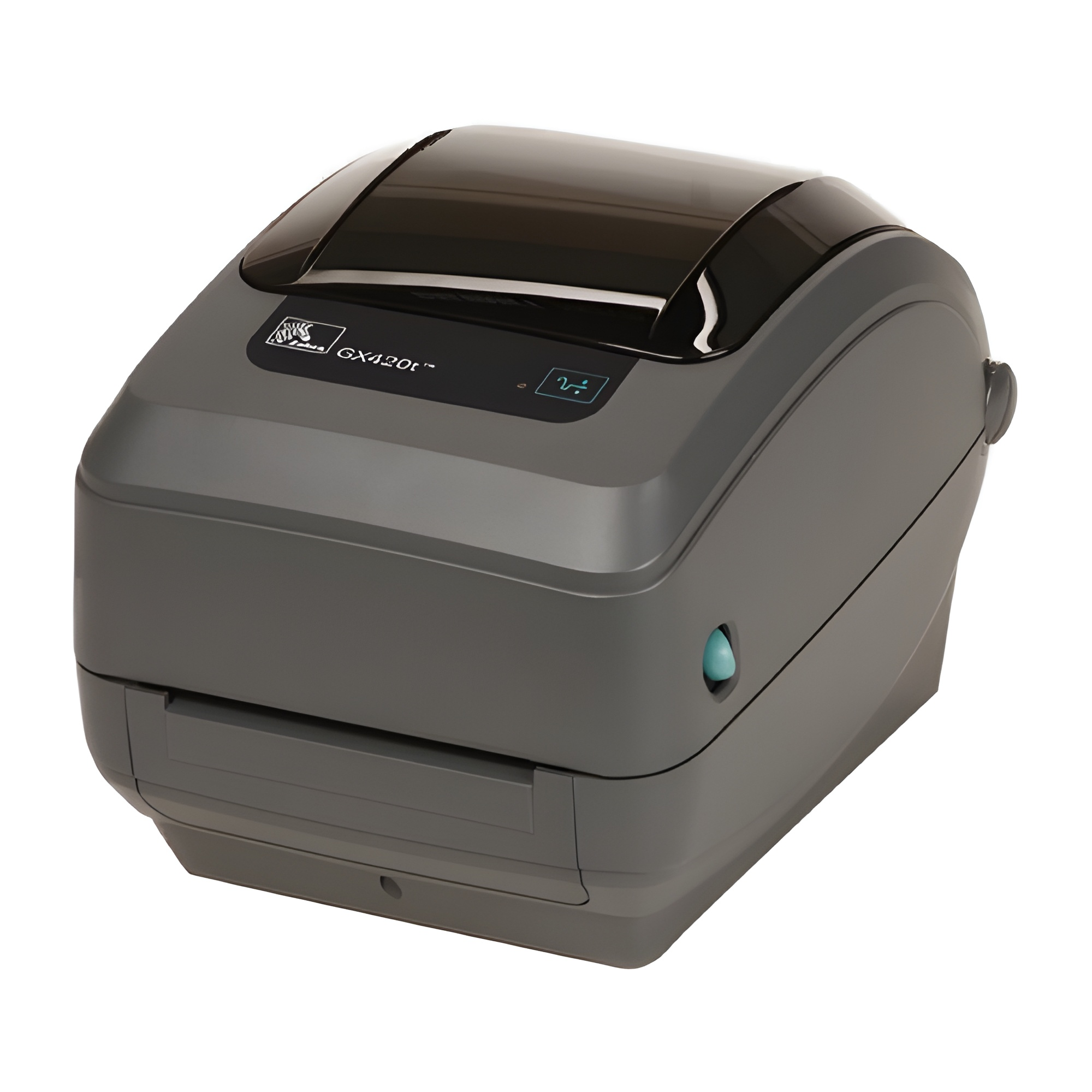
Zebra GX420t Label Printer
Audience: Vet Med faculty and staff using Zebra GX420t label printers
Applies To: Zebra GX420t Label Printer
Before You Begin
The procedures below use the printer's Feed button to adjust settings. Follow the specified number of status light flashes for the issue you are troubleshooting.
Labels Are Not Printing
If your Zebra printer is not printing labels, perform a manual calibration.
- Press and hold the Feed button.
- Continue holding the button until the status light flashes 7 times.
- Release the Feed button after the seventh flash.
The printer will print several labels as it automatically recalibrates. Calibration is complete when the printer stops printing.
Labels Are Printing Too Light
If labels are printing too light, adjust the printer's darkness setting.
- Press and hold the Feed button.
- Continue holding the button until the status light flashes 6 times.
- Release the Feed button after the sixth flash. The printer will print a series of labels with progressively darker settings.
- Press the Feed button when the print is clear and legible.
If the adjustment does not improve the print darkness, replace the label roll.
Label Size Is Printing Incorrectly
If the printed label outline does not match the size of your labels, adjust the label size setting.
- Press and hold the Feed button.
- Continue holding the button until the status light flashes 5 times.
- Release the Feed button. The printer will progressively print larger label outlines.
- Press the Feed button when the printed outline is the appropriate size for your label.
Label and Ribbon Replacement
If you need to replace the labels or ribbon in your Zebra GX420t printer, refer to the following instructions:
Zebra GX420t Label and Ribbon Replacement Instructions
Still Having Issues?
If the printer continues to have problems after trying the steps above, contact the IT@VetMed Help Desk for assistance.
Need Additional Assistance?
Contact the IT@VetMed Help Desk for additional troubleshooting assistance.
Last reviewed: [Insert review date]