

Multifactor Authentication (MFA), Enrollment
The first time you log into MFA-protected University website or service, you will be asked to enroll your account and set up a device.
Choosing a Device
- Duo Mobile App - It is strongly recommended that you use the smartphone that you already own during enrollment. This will allow you to use the Duo Mobile app (available on iOS and Android) for authentication. With the Duo Mobile app, you can simply receive a push notification to approve authentication requests, instead of typing in a code.
- You can use a tablet in lieu of a smartphone.
- One advantage of using the Duo Mobile app is that you can receive push notifications over Wi-Fi. This is helpful when you're in an area where you cannot get a cellular signal, or when traveling abroad.
- You can also use the Duo Mobile app even if you are offline and have no access to data, via the Duo Mobile passcode option.
- Hardware Token / Security Key - These can be a good option if you do not want to use your smartphone for authentication. Information on hardware tokens can be found at this help article: Multifactor Authentication (MFA), Yubikey, Purchase and Use.
- Staff members can inquire with their department to see if a hardware token can be purchased for them.
- The Duo Mobile Prompt adds support for FIDO2/WebAuthn security keys. This enables users to bring their own, although it is the user's responsibility to ensure compatibility.
- Hardware tokens and security keys can also be used while offline.
- Microsoft Authenticator - It is strongly recommended that you use the smartphone you already own during enrollment. This will allow you to use the Microsoft Authenticator app (available on iOS and Android) for multi-factor authentication (MFA). With Microsoft Authenticator, you can securely verify your identity by approving sign-in requests or entering a number displayed on your sign-in screen, providing a fast and secure authentication experience.
There are two ways to enroll in multi-factor authentication:
NetID Center
Instructions
- Navigate to the NetID Center (https://identity.uillinois.edu) and log in.
- If your account is already enrolled in MFA, you will need to authenticate with one of your existing devices. If you run into issues or do not have your device, please see this help article for more information: Multifactor Authentication (MFA), Troubleshooting.
- Once you're logged in, make sure that the email address listed under Recovery Settings is still correct. This email address can be used to get bypass codes in case you cannot authenticate using your devices in the future.
- Click on 'Set up 2FA'.
- If you are not on campus and connected via the campus network: You will be shown a screen with the heading “(!) Must be connected to the University network to register” – you will still be able to enroll, but you will need to confirm your identity by way of one of your recovery options:
- Click the blue “Get registration code” button below the ‘Option 2’ heading.
- Select one of the presented pieces of contact information, which should match the password recovery options confirmed in step 2.
- You will receive a 6-digit “UI Verify Registration Code” there. Enter the numbers at the “Enter registration code” box on the next screen.
- You will be taken to the “Device Setup: Add a Device” screen. Select the type of device you are intending to use for authentication:
- Smartphone (recommended) should be selected for any device with a phone number
- Tablet should be selected for devices that do not have a phone number but can install the Duo Mobile app.
- Hardware token should be selected for MFA token devices purchased from the University WebStore; more detailed instructions here: Multifactor Authentication (MFA), Yubikey, Purchase and Use.
- Device dependent instructions below.
Smartphone
Type of Device Platform
Select your device platform, then click Continue.

Installing and Activating Duo Mobile
Duo Mobile is an app that runs on your smartphone or tablet and helps you authenticate quickly and easily.
- Search for Duo Mobile in your app store.
- Download the app.
- Select "OK" when asked if Duo Mobile can send push notifications.
- Select Add Account
- Once the app is installed, click I have Duo Mobile installed.

Activate Duo Mobile
A) Using phone camera for Activation
Follow the instructions shown on the screen to open Duo Mobile on your device, tap the '+' button, and scan the barcode on your screen with your camera.

You are now successfully enrolled. If you have more than one device enrolled, you will be asked if you would like to make this device your favorite. If it is your favorite, it will show first when authenticating.
B) If you opt not to use your phone's camera for activation
Select "Or have an activation link email to you instead"

Enter your email address and select Send email

Below is an example of the email you will be sent. You should open this email on your smartphone by clicking the link or pasting/typing the link in to your smartphones broswer URL bar.

Select Open

Tap Save on the next screen.
University of Illinois should appear under the Duo Mobile App

You are now successfully enrolled. If you have more than one device enrolled, you will be asked if you would like to make this device your favorite. If it is your favorite, it will show first when authenticating.
Tablet
Choose the type of tablet you are adding.
Tablets will be iOS or Android.

4. Installing and Activating DUO Mobile
Duo Mobile is an app that runs on your tablet and helps you authenticate quickly and easily.
- Search for Duo Mobile in your app store.
- Download the app.
- Select "OK" when asked if Duo Mobile can send push notifications.
- Select Add Account
- Once the app is installed, click I have Duo Mobile installed.
5. Activate Duo Mobile
A) Using tablet camera for Activation:
Activate Duo Mobile by scanning the barcode with the app’s built-in barcode scanner using your tablets camera.
You are now successfully enrolled. If you have more than one device enrolled, you will be asked if you would like to make this device your favorite.
B) If you opt not to use your tablet camera for Activation
Select "Or have an activation link email to you instead"
Enter your email address and select Send email
Below is an example of the email you will be sent. You should open this email on your tablet by clicking the link or pasting/typing the link in to your tablets broswer URL bar.
Select Open
Tap Save on the next screen.
University of Illinois should appear under the Duo Mobile App
You are now successfully enrolled. If you have more than one device enrolled, you will be asked if you would like to make this device your favorite. If it is your favorite, it will show first when authenticating.
Hardware Token
For a C200 Hardware Token, Type in the serial number of your device which can be found on the back of the hardware token.

After you click Continue, you will need to confirm your token.
For Yubikey:
Follow instructions listed here: Multifactor Authentication (MFA), Set-up a Security Key (from Webstore or B.Y.O.D.) in Duo
Duo Universal Prompt (Urbana, Chicago, and Springfield Applications)
- If you are accessing an application protected by the Duo Universal Prompt, it will walk you through the enrollment process after you authenticate with your username and password:
- Next, you will be presented with a list of enrollment options.
We highly recommend using the Duo Mobile smartphone app, as it offers the best combination of security and convenience:
Duo Mobile
- If you choose the Duo Mobile option, you will be asked to enter your phone number on the next screen. If you have a tablet you can select that option:
- A text message will be sent to your phone number to verify ownership:
- After ownership of the phone is verified, you will be instructed to download the Duo Mobile app, available for iOS and Android:

- Once Duo Mobile is installed on your phone, open it. Make sure to enable notifications for the app.
Click on Next in the prompt on your computer, and either scan the QR code provided, or choose to have an activation code emailed to you:
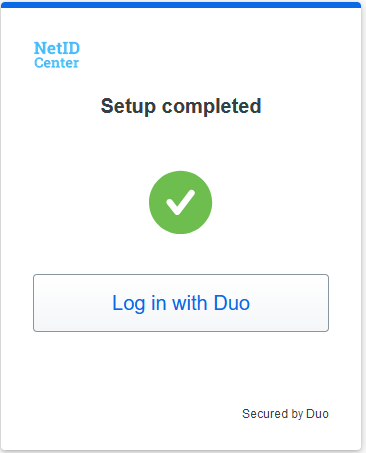
- Your enrollment is complete! You have the option of adding a backup authentication method. If you choose to skip for now, you can click the "Log in with Duo" button to proceed with the login process:
WebAuthn/FIDO2 Security Key
The Duo Universal Prompt supports the use of a WebAuthn/FIDO2 Security Key for authentication. Please make sure your security key and browser meet the requirements listed here. The dialog boxes you see outside of the Duo Universal Prompt can vary between browsers and operating systems.
NOTE: The NetID Center and AITS Duo Prompts do not support WebAuthn. Because of this, you will want to add another authentication method such as the Duo Mobile app as a backup.
- Once the Security Key option is selected, click Continue. You may see a dialog box from your browser next. If the security key is already recognized by your browser, you can skip to step 2. Otherwise, select the option for 'External security key or built-in sensor':

- You will then see a dialog box from your operating system. Once you proceed you will be asked to set your security key PIN. If you have not set a PIN yet you can create one.

- Once your security key is verified and authorized you will be asked to touch your security key to complete the authentication.

- You're done! As previously mentioned, you will want to have an additional authentication method as a backup in case you encounter an application protected by the AITS Duo Prompt such as Banner or the NetID Center.
You may also enroll using the text method. This is not recommended as using SMS for authentication is not as secure as other methods.
Microsoft Authenticator
- Microsoft Authenticator - The Microsoft Authenticator app is available on iOS and iPadOS (15.0 or later) as well as Android (8.0 and later). Use the following link to install, make sure to pick your device listed (initially it gives you the iOS, you can select Android if you have an Android device.) go.illinois.edu/MFA_Setup