

Zoom, Meetings, Using Authentication to Protect Meetings
Zoom meeting authentication can help keep your meetings secure and prevent unauthorized access or interruptions. While it is not required to use these settings, they are on by default, and it is highly recommended that they remain on to prevent meeting incidents.
How to check your Zoom authentication settings
- Go to https://illinois.zoom.us/profile/setting and sign in.
- Select the Meeting section under Settings.
- In the Security section, scroll down to the setting for Only authenticated meeting participants and webinar attendees can join meetings and webinars
- Check that the slider to the right is toggled in the on position
- Scroll down a few more settings and find Only authenticated users can join meetings from Web client
- Check that the slider to the right is toggled in the on position.
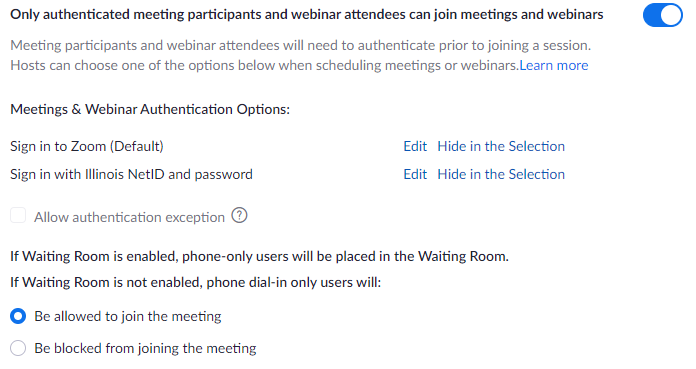

Choosing your authentication profile
The authentication profile describes who is allowed to join your meeting. Carefully choosing your authentication profile can strengthen the protection for your event. You will have three options to choose from. You can use Sign in to Zoom, which only requires attendees to have a Zoom account, while Sign in with Illinois NetID and password only allows Illinois System Zoom accounts. Lastly, you can edit the Sign in with Illinois NetID and password preset to configure your own authentication profile.
- Sign in to Zoom (Default)
- This option allows anyone who has a Zoom account to access your meeting. Use this option if participants are NOT part of the University of Illinois System or do not have a University of Illinois email address. Because anyone can create a Zoom account, this option is less secure than restricting access to users logged in with a University of Illinois email address.
- This option allows anyone who has a Zoom account to access your meeting. Use this option if participants are NOT part of the University of Illinois System or do not have a University of Illinois email address. Because anyone can create a Zoom account, this option is less secure than restricting access to users logged in with a University of Illinois email address.
- Sign in with Illinois NetID and password
- This option only allows participants to join who have Zoom accounts using University of Illinois System email addresses. Only users with an email address ending in uillinois.edu, uis.edu, uic.edu,illinois.edu, or their subdomains would be able to participate in the meeting.
- This option only allows participants to join who have Zoom accounts using University of Illinois System email addresses. Only users with an email address ending in uillinois.edu, uis.edu, uic.edu,illinois.edu, or their subdomains would be able to participate in the meeting.
- Create custom access by editing the authentication profile
- If needed, you can make changes to the authentication profile by clicking the Edit button after selecting the Sign in with Illinois NetID and password authentication profile. Then you can carefully add email domains in the space provided. A great use case would be guest lecturers from other institutions; you can add those email domains so that your speakers can join the event. You can also edit these options when scheduling a meeting. Do not add large email company domains to this listing!
- Click the Edit link next to Sign in with Illinois NetID and password
- Add or delete email address domains to allow users from those domains to join your meetings.
- Click the Save button.

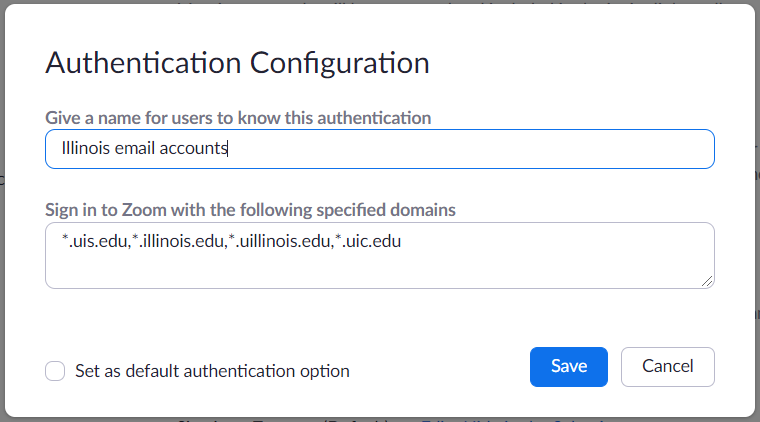
- Log in to illinois.zoom.us/meeting/upcoming and select the meeting you wish to edit or schedule a new meeting.
- In the security section of the edit meeting window, select Sign in with Illinois NetID and password. NOTE: you can only edit the authentication profile of this option, not Sign in to Zoom. You can edit the name of each if you wish.
- Click the edit button to the right, AFTER selecting Sign in with Illinois NetID and password from the drop down menu.

- Add the domains you wish to allow entry into your meeting. DO NOT add large email companies like gmail.com, outlook.com or yahoo.com. You can use the wild card character: * if you wish to include subdomains without listing each. Click save when finished.

- Log in to https://illinois.zoom.us or your Canvas, Learn@Illinois (Moodle) or Compass2g course Zoom tool module to find the meeting instance you wish to edit.
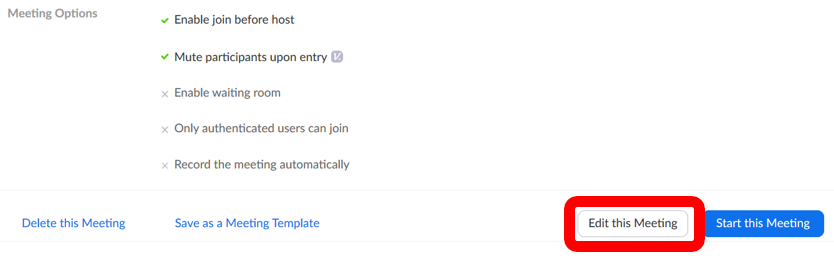
- Scroll down to find the Edit this Meeting button. Click it.
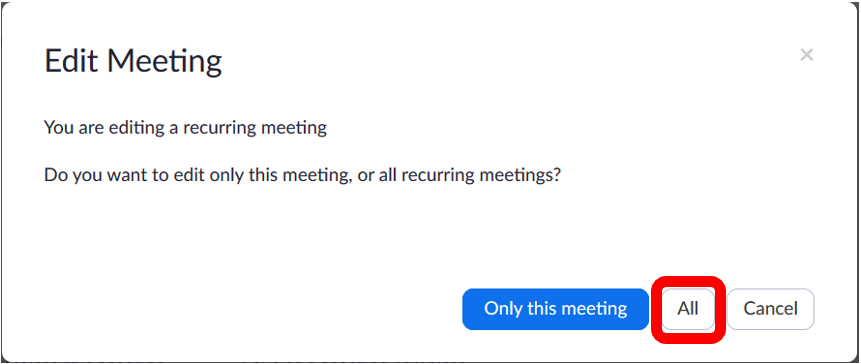
- If this is a recurring meeting, click All.
- Scroll down to the Security section and click Require authentication to join.
- Select the appropriate authentication option. Note that you can edit the safelisted domains here if needed.
- Click the Save button at the bottom.

Issues joining a restricted meeting or webinar
If users attempt to join your meeting and are not signed in to Zoom.us, they will receive the following message.

If users attempt to join your meeting and are logged in with an unapproved email address, they will receive the following message.
More information about what joining participants may encounter can be found at: Zoom: Issues joining a restricted meeting or webinar