

cPanel, Logging in to cPanel
Logging in to the cPanel dashboard
If you're not the site owner, you might not need to log into cPanel itself. If you're contributing content to a specific website (for example, a WordPress blog, a Drupal database, or a forum), you may need to log into that website instead. Check with the site owner to see where you need to log in. cPanel, Getting access and setting permissions has more information.
Logging in to cPanel with your Illinois identity
If you're off campus, you'll need to log in while using the VPN, Cisco AnyConnect, Cisco Secure Client, About VPN Profiles.
- Begin by visiting https://web.illinois.edu.
- Choose "Login"

- Click the blue "Campus Login" button
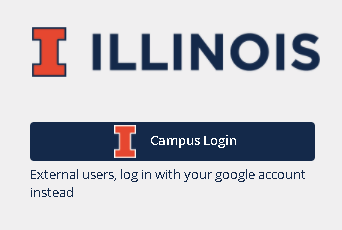
- If prompted, choose your Illinois.edu email and log in with your NetID and NetID password.
Logging in with your Google Account (for users without an Illinois identity)
In order to be able to log in to a particular website, your campus partner will need to have given you access either to that site or to the cPanel account as a whole.
- Tell your campus partner the Gmail address you wish to use to log in with.
- Your campus partner will need to add you to the list of authorized users for this account. "Giving cPanel account access" in cPanel, Getting access and setting permissions lists the steps to take.
- Once your partner has given you access, visit https://web.illinois.edu
- Choose the "Login" button
- Click the orange "External Contributors" button
- If prompted, choose the Gmail account or enter the gmail address that you gave to your campus partner and follow Google's prompts.